What are Shortcodes in WordPress and What Do They Provide?

If you’ve heard the term Shortcode while browsing around the WordPress world, or if you’ve seen the term used within instructions for a WordPress plugin and have been wondering what exactly a shortcode is and what it does, then you’ve found the right tutorial. Shortcodes are an awesome tool for both WordPress developers and WordPress administrators.

What is a Shortcode?

The definition from the WordPress Codex…

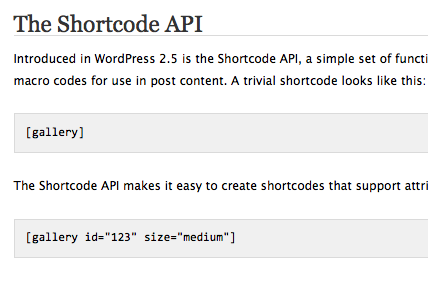
Introduced in WordPress 2.5 is the Shortcode API, a simple set of functions for creating macro codes for use in post content.

Huh? Let me put it a bit more simply. A Shortcode is a short code that you can insert into a post or page (and even a Widget) that will display some kind of content. Think of it like an abbreviation for a larger amount of code. All Shortcodes go between brackets, like this:

[shortcode]

Let’s imagine that we have a plugin installed that lets you create different lists of links grouped by topics. Let’s further imagine that you create a topic named Featured WordPress Tutorials and that you have added five links attached to that topic. Let’s also theorize that you wanted to put that list of links into several (but not all) of your WordPress pages or posts. How would you do that without manually creating those links again for each page or post where you wanted them to appear? If this plugin provides you with a Shortcode, it’s simple.

Where Do Shortcodes Come From?

As referenced above, WordPress introduced Shortcodes with the release of WordPress 2.5. This gave theme and plugin developers the ability to create Shortcodes for a multitude of uses…and us daily WordPress users a lot more options. I won’t get into how to create your own Shortcode just yet, so for now, let’s assume that the developer of our example Topics Link List plugin above built in some Shortcodes into his/her plugin for us to use. Let’s assume they provide the Shortcode below…

[topic list]

How and Where Do I Use a Shortcode?

Shortcodes can be used almost anywhere in WordPress. They could be built into your theme code, you could place them in your theme’s functions.php, comments pages, in your archive pages, etc. However, the most common use of Shortcodes are the ones provided by plugins that you place into your pages or posts when you’re creating or editing them.

Back to our example. So I’ve created my topic and some links within our hypothetical plugin settings and now I want them to show in this post. I would simply add the Shortcode below…

[topic list]

…and this abbreviation or short code would actually output my list like below:

Featured WordPress Tutorials

  1. Introducing the WP Modder App for iPhone and iPod Touch
  2. What is the best WordPress Plugin for Making a Personal Connection with Your Visitors?
  3. Speeding up Your WordPress Site by Limiting the Number of Post and Page Revisions
  4. How to Avoid Confusing Your New WordPress Authors and Only Give Them What They Need.
  5. How to Customize and Remove Items in Your WordPress Dashboard and Post Edit Screens

This is just a quick example and explanation of what Shortcodes are and how they might be used. I hope it gives you a starting point in understanding the real power and benefit of using Shortcodes in WordPress.

Can I Use a Shortcode in a Widget?

You sure can, but you’ll need to activate this feature in your theme first. See my other tutorial here or right on your iPhone, iPod Touch, or iPad by downloading the WP Modder App here.

Stay tuned here and at WP Modder to learn why and how to create your own Shortcodes.

How to Easily Find Images and Links for Your WordPress Website

You probably already know that adding images, videos, and relevant links to your blog posts and website articles is something you should be doing. If you didn’t know this or the reasons why, stay tuned here. If you’re already doing this, you may be adding these links, video and images in an inefficient way. In this tutorial, I’m going to highlight one of my favorite plugins for finding images that are legal to use on your site, and it also allows you to easily search several other sources in order to find relevant videos and links for your content including:

  • Youtube videos
  • Wikipedia
  • Google
  • Google News
  • Google Blog Search
  • Google Book Search
  • Google Maps

This is a truly powerful and full featured plugin and is named Insights.

Where can you find free images to use on your WordPress website?

Insights Plugin by Vladimir Prevolac

Insights Settings

After activation, this plugin makes additions to two areas of your WordPress backend. The first addition creates a new Insights link under the Settings menu.

How to configure the insights plugin settings on your WordPress website

Insights Settings Menu

I’m not going to go into detail for the settings above. They’re pretty self-explanatory. However as you can see, the Google Maps module needs to be activated in order to search addresses and insert a Google Map into your content. For this to be enabled, you’ll need to have a Google Maps API key and there’s a handy link to go get one.

If you have no idea what this is or how to go about getting an API, leave a comment on this post and let me know. The process may warrant a tutorial of it’s own.

Insights Meta Box

The second addition will be a new Insights meta box on your post/page editing screens.

How to configure the insights plugin settings on your WordPress website

Insights Meta Box

This is where the real power and convenience of this plugin will present itself. From this area you can search a variety of sources to find and automatically add content, links, and images to your posts. Notice the radio buttons under the search box (click image to enlarge).

Simply enter your search terms and choose the source you’d like to search and you’ll have the option to insert whatever content you’ve searched right into your post. There are couple specific tips I’d like to share about the different options so I created a video to show how to use the plugin’s options.


How to Hide Individual Pages from the Search Engines

In a previous post I showed how you can hide individual pages from your WordPress page navigation menus. I also warned that they can still be indexed by search engines and therefore seen by unintended people through search results.

Why Do Search Engines Still Index My Hidden Pages?

Because we haven’t told them not to…yet. The solution for blocking search engines from indexing individual pages lies in using what are known as robots meta tags. In a nutshell, the robots meta tags deliver instructions to search engines on what to do when they get to the content of an individual web page. The optional tags you can specify are:

"index"
"noindex"
"follow"
"nofollow"

The “index” and “noindex” tell search engines to read the page or not. The “follow” and “nofollow” tell search engines to either follow the links on your pages or not. You can use any combination of these robots meta tags, but only the following combinations make sense logically.

meta name="robots" content="noindex", "follow"
meta name="robots" content="index", "nofollow"
meta name="robots" content="noindex", "nofollow"

How To Specify Robots Meta Tags on Your Pages and Posts

If you were writing individual HTML pages, you would need to insert these robots meta tags in the <HEAD> section of each of your pages. Because WordPress handles the creation of our pages dynamically it would be very difficult to do on our own…[private_free] Luckily, there are many WordPress plugins to help us accomplish this easily. Not only are there plugins to help us insert these tags on a per page/post basis, but at least one cutting edge theme company (StudioPress) has already built this functionality into their themes.

What Plugins Can I Use?

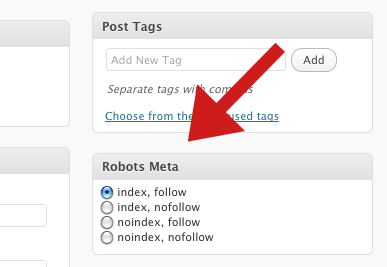
If you’re not using a theme that has robots meta tags built-in, you’ll want to grab a plugin to help you along. The plugin I prefer most is by Joost de Valk and is named Robots Meta. Once installed, it adds a “Robots Meta” box to the right side of your “Post/Page Edit” screens. It looks like this.

How to Block Your WordPress Pages from Search Engines Using Robots Meta

Robots Meta Plugin

While creating your post or page, simply choose what robots meta tags you would like to include on that particular post or page. Whenever I hide a page from my navigation menus, chances are that I don’t want it seen by anyone except the intended party, so I simply choose “noindex, nofollow”. However, there are situations where you might want to hide a page and still have it indexed…but more on that in a later post. You can explore more robots meta plugins here.

Robots Meta Options in Themes

There are a few themes out there that can help, but if you happen to be using any themes from StudioPress (and I highly recommend that you consider it), you will see the same robots meta options on your editing screens like in the image below.

StudioPress WordPress Themes Built-in Robots Meta Tags

Built-in Robots Meta Tags Options

StudioPress themes also have other built-in Search Engine Optimization settings available. You can learn more here.

Learn How to Hide a Page Link from Your WordPress Website Page Menu

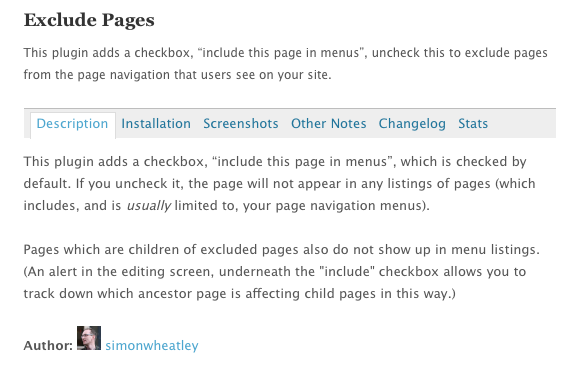
When you create a new page in WordPress it automatically shows up in your main navigation menu. Although this is intended default behavior, sometimes you don’t want that to happen. As an example, I regularly create “test” pages for my clients in order to give them a visual interpretation of some functionality or process I’m trying to explain. I absolutely don’t want these test pages in my menu, not only because it would look terrible but also because I don’t want the general public to see these client-specific pages.

Have you ever had the need to create a WordPress page and have it NOT show up in your page navigation menu? At first glance, this seems like a really simple thing to do, and with the menu creation options in WordPress 3.0 it is…well, kind of. I’m going to save the menu creation for another tutorial but I wanted to show you a very quick and easy way to exclude any page you want from your page navigation menus. It’s simple and I use it every day. It’s a plugin named… [Read more...]

WordPress hosting from WPEngine